Watchlist
Know who’s at the gate before they’re through it.
Keep a list of people to look out for: someone banned from site, a parent who mustn't collect, a driver with an unpaid bill. When one of them checks in, any way they do it, your team's phones are told at once. Someone you hold waits at the gate, seeing only “Please wait here”, until one of you lets them in.
On Growth and Portfolio, and in the free trial. No add-on, no Enterprise plan.
How it works, in four steps
The list is checked on every check-in, before anyone else is told.
You
Add someone
Their name, and any of a mobile, an email, a licence or a plate. A reason only your team sees. Alert or hold.
They
Check in as usual
By QR code, the Welcome Screen kiosk, the app, an invite or your own system through the API. Every way is checked.
Your team
Is told at once
A notification on the phones of the people who check visitors in, and a card on Today, with the reason.
Your team
Decides
Someone held waits at the gate until one of you taps Let in or Not today. The first answer counts.
Alert, hold, or possibly them
You choose for each person what happens when they check in.
Alert
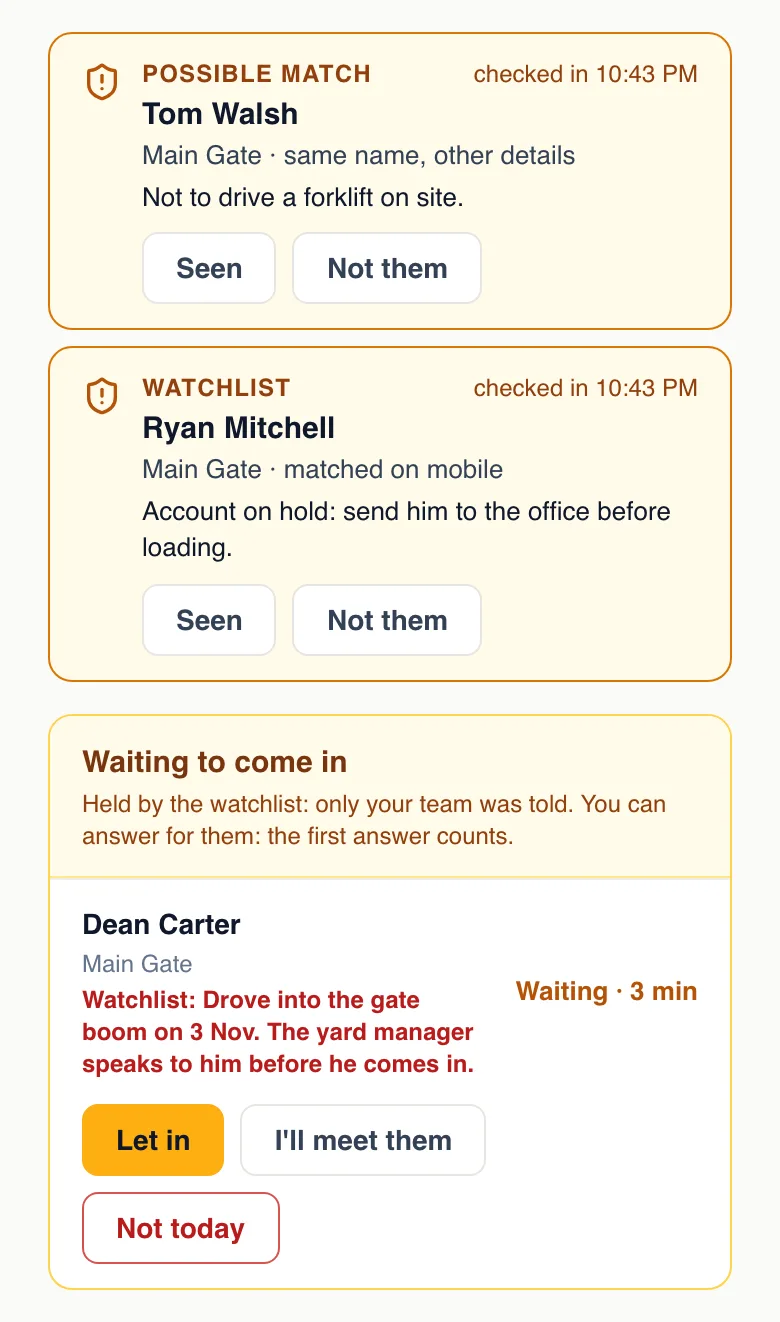
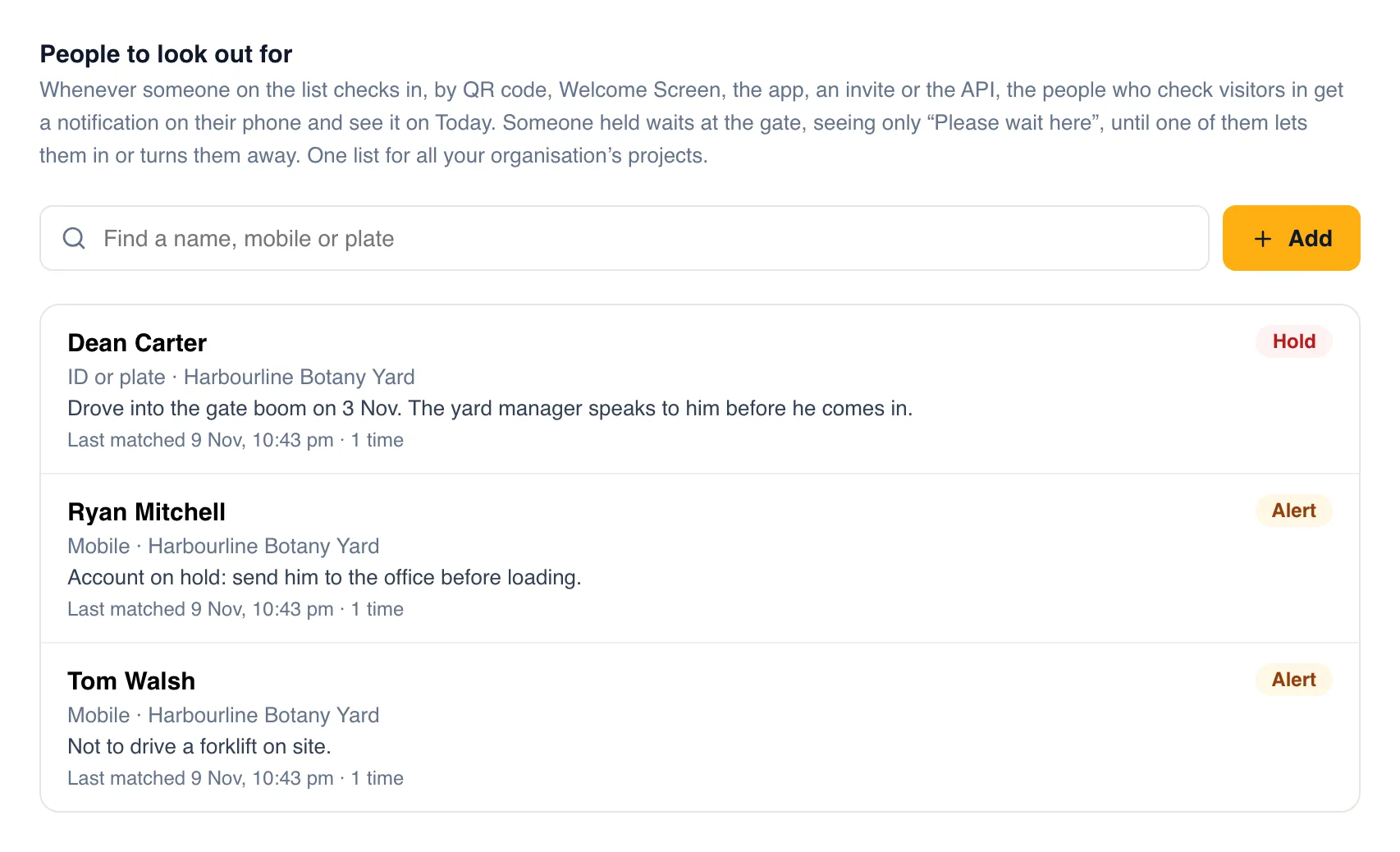
They go in as usual, and your team is told straight away, with the reason: “Account on hold: send him to the office before loading.”
Hold at the gate
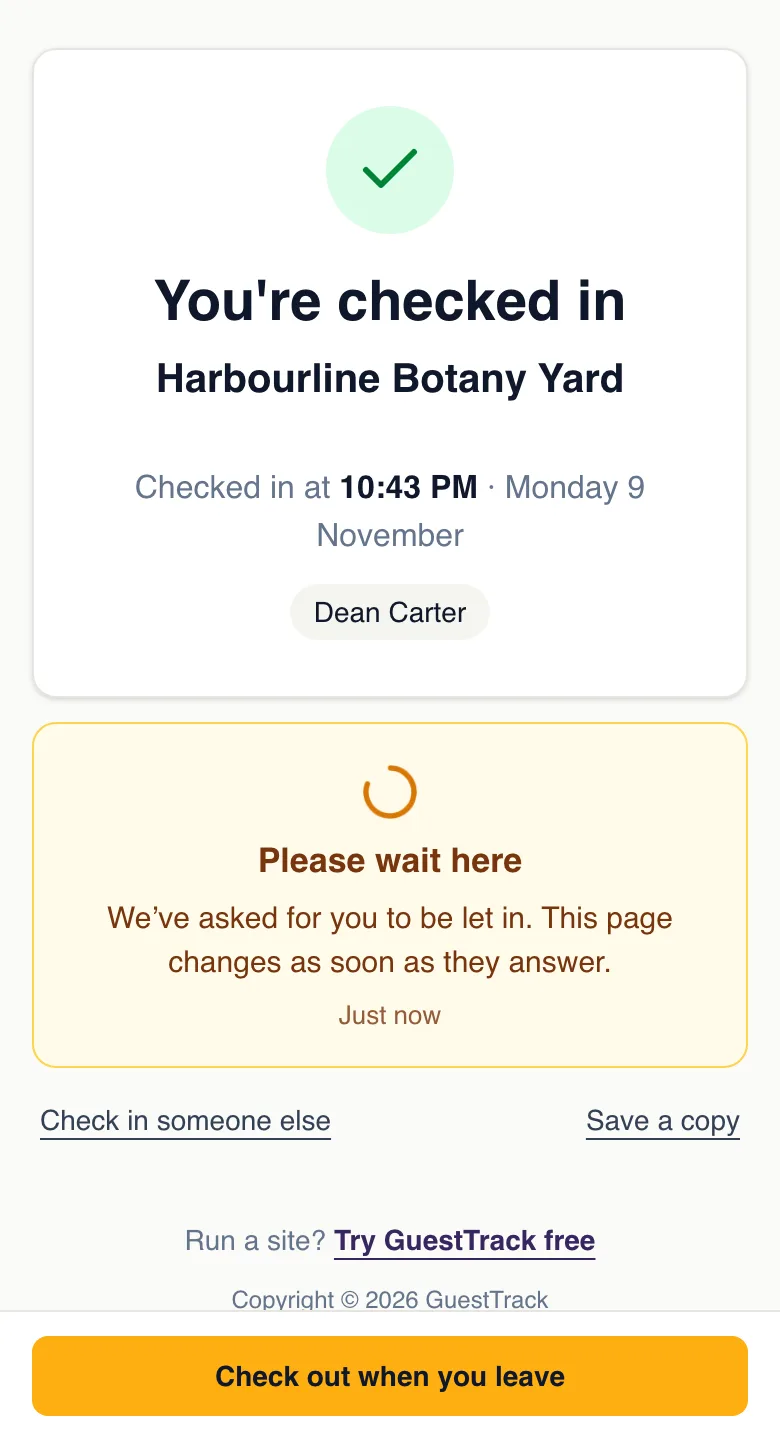
They see “Please wait here”. Only your team is told: not the host, not Slack. One of you lets them in or turns them away.
Possible match
Same name, other details. Your team is told, and the visitor is never held. Not them clears that mobile for good.
At the gate
Your team sees who, where and why
Matches are pinned to the top of Today, with the check-in point, what matched and the reason. Seen clears the card. Someone held waits under “Waiting to come in”, with the reason in red, until someone taps Let in, I'll meet them or Not today.
With the GuestTrack app on iPhone or Android, the people who check visitors in get a notification the moment it happens, and can let someone held in from the notification.
Matched on what people can't easily change
A name is easy to misspell or share. A licence number or a plate isn't.
Mobile
However it was typed: with or without the country code, spaces or a leading zero.
Email
Upper or lower case, it’s the same address.
ID numbers and plates
A driver licence, a badge, a car or truck plate, found in any answer on your form, without spaces or dashes.
Name
A possible match only, ignoring accents and word order. Never enough to hold anyone.
Invites
Invited by mistake? Nothing is sent
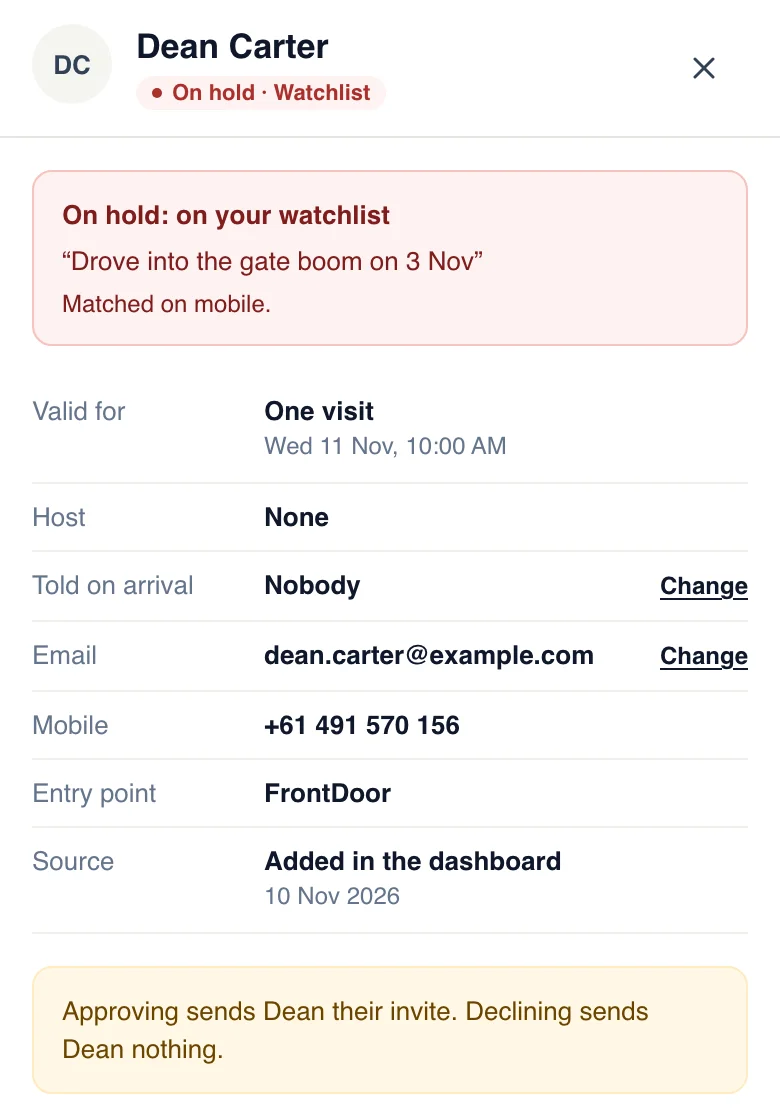
Invites are checked the moment they have someone's details: one by one, imported from a spreadsheet, made in the app, or registered on your own sign-up form. If it's someone you hold, no email, check-in code or Wallet pass goes out. The invite waits for an owner or administrator, who is emailed straight away with the reason.
Approve, and they get their invite as usual. Decline, and they're sent nothing at all. Everyone else on your team sees only “Needs a check”, never why.
Add someone in one tap, from their visit
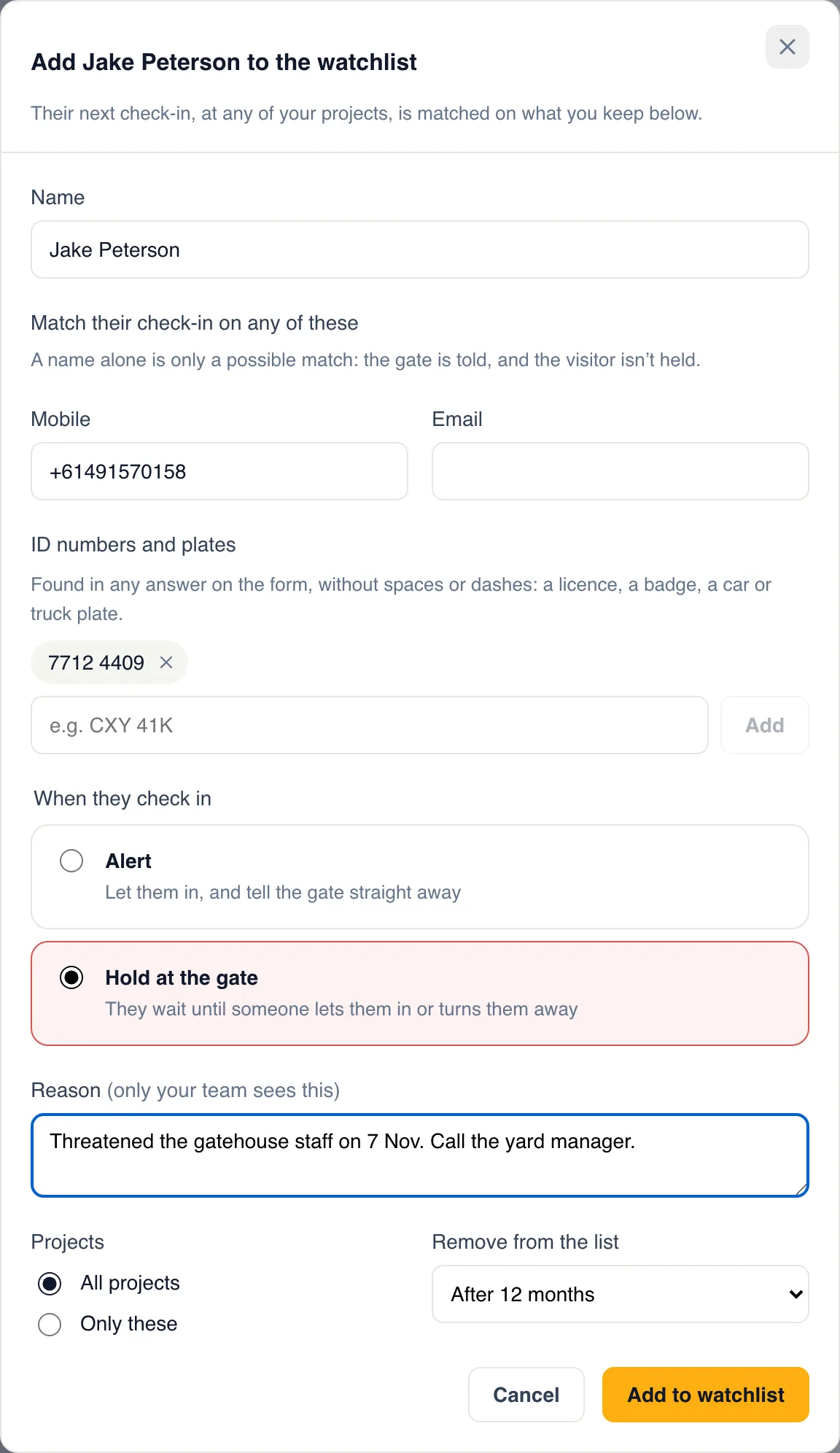
Open a visitor in Visitor Records and tap Watchlist. Their name, mobile, email and the answers that look like a licence or a plate are already filled in. Choose Alert or Hold, say why, and their next check-in, at any of your sites, is matched.
For the people you need to know about
One list for every site in your organisation, or a person only at the sites you choose.
Depots and yards
The driver who damaged the boom gate waits until the yard manager has had a word.
Schools
The office knows the moment someone who mustn’t collect a child checks in.
Construction sites
A contractor taken off site last month can’t walk back on unnoticed.
Offices and shared buildings
Reception is told about a former employee or a trespass notice before they reach the lift.
Set it up in two minutes
- In Check-in Setup, open Watchlist and tap Add. Or open a visitor in Visitor Records and tap Watchlist.
- Fill in what to match on, choose Alert or Hold at the gate, and say why.
- Make sure the people at the gate have the GuestTrack app, so their phone tells them (see Today).
Each person shows when they last matched. Entries leave the list after 12 months unless you choose otherwise.
Bring the list you already keep
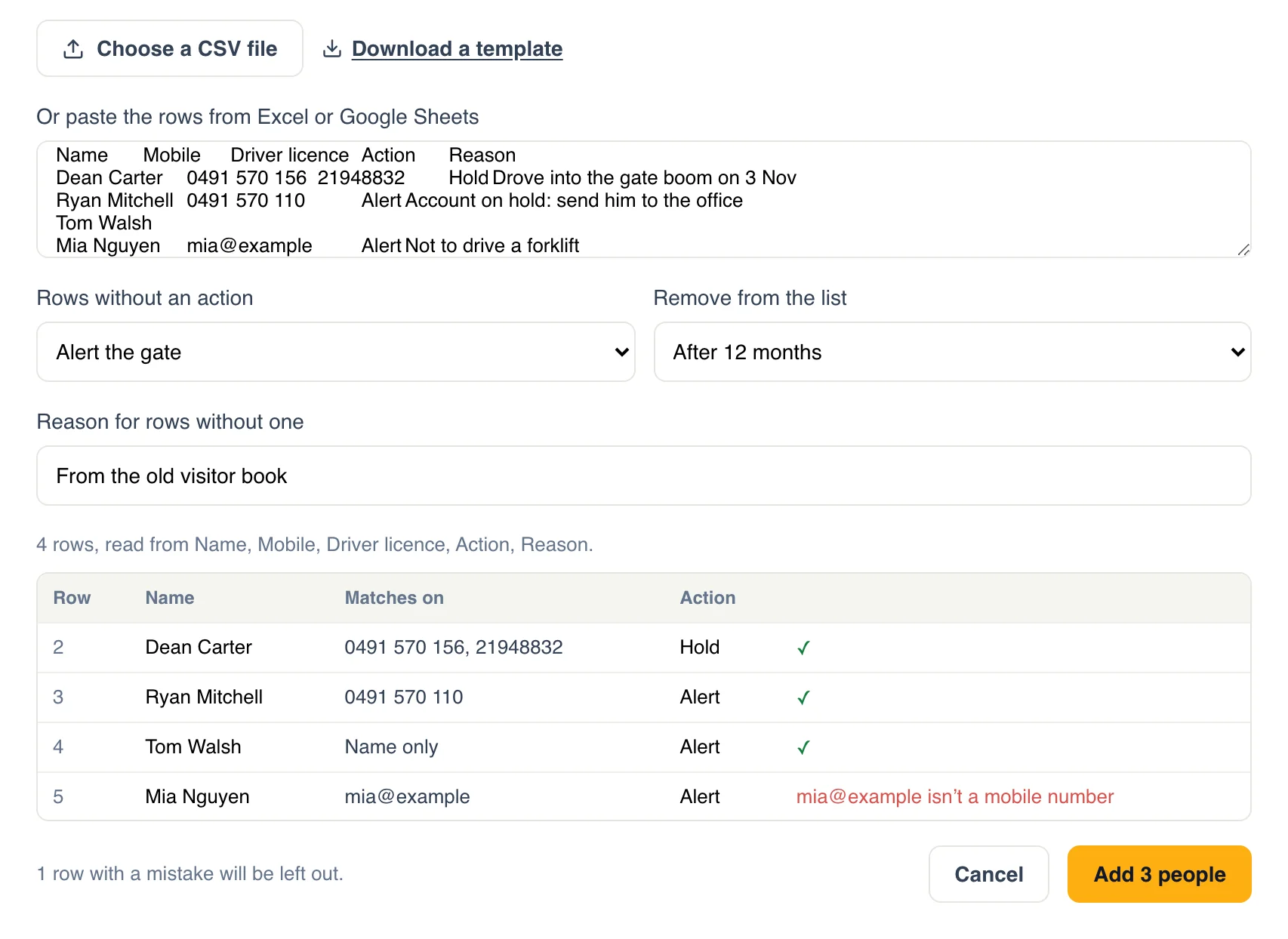
Paste rows from Excel or Google Sheets, or choose a CSV file: up to 500 people at a time. Columns are found by their headings, in any order, and every row is checked and shown before anyone is added, so a mistyped mobile is fixed, not imported.
People already on the list are left out, so importing the same file twice adds nobody twice. Export the whole list as a CSV whenever you need it.
Questions
- Does the visitor know they’re on the list?
- No. Someone held sees “Please wait here”, the same as any visitor waiting to be let in. Someone with an alert checks in as usual. The reason is only ever shown to your team.
- What if two people share a name?
- A name alone is only a possible match: your team is told, and the visitor is never held. If it’s someone else, tap Not them, and that mobile won’t match the entry again.
- Is it a blocklist or a watchlist?
- Both. Each person on it is either an alert (they go in, and your team is told straight away) or a hold (they wait at the gate until someone lets them in or turns them away). Nobody is turned away by the system on its own.
- Who can change the list?
- The project’s owner and administrators. Everyone who checks visitors in is told about a match, and can answer for someone held.
- We have several sites. One list or many?
- One list for the whole organisation. Each person on it applies at every project, or only the ones you choose.
- How long does someone stay on it?
- Twelve months by default, so old entries don’t pile up. Choose 3 or 6 months, or never, for each person.
- Can I import a list?
- Yes. Import a CSV or paste rows from Excel or Google Sheets, up to 500 at a time: every row is checked before anyone is added, and people already on the list are left out. Export the whole list as a CSV whenever you like.
- What if someone on the list is invited?
- Invites are checked too. If someone you hold is invited, or registers on your form, nothing is sent to them: the invite waits until an owner or administrator approves or declines it, and they are emailed straight away. Declining sends the visitor nothing.