Get started: ready for your first visitor in under 10 minutes
A new project walks you through six steps, from how you will use GuestTrack to your first real visitor. Most projects are ready in under 10 minutes, with no hardware and nothing for visitors to install.
Tell us how you will use it
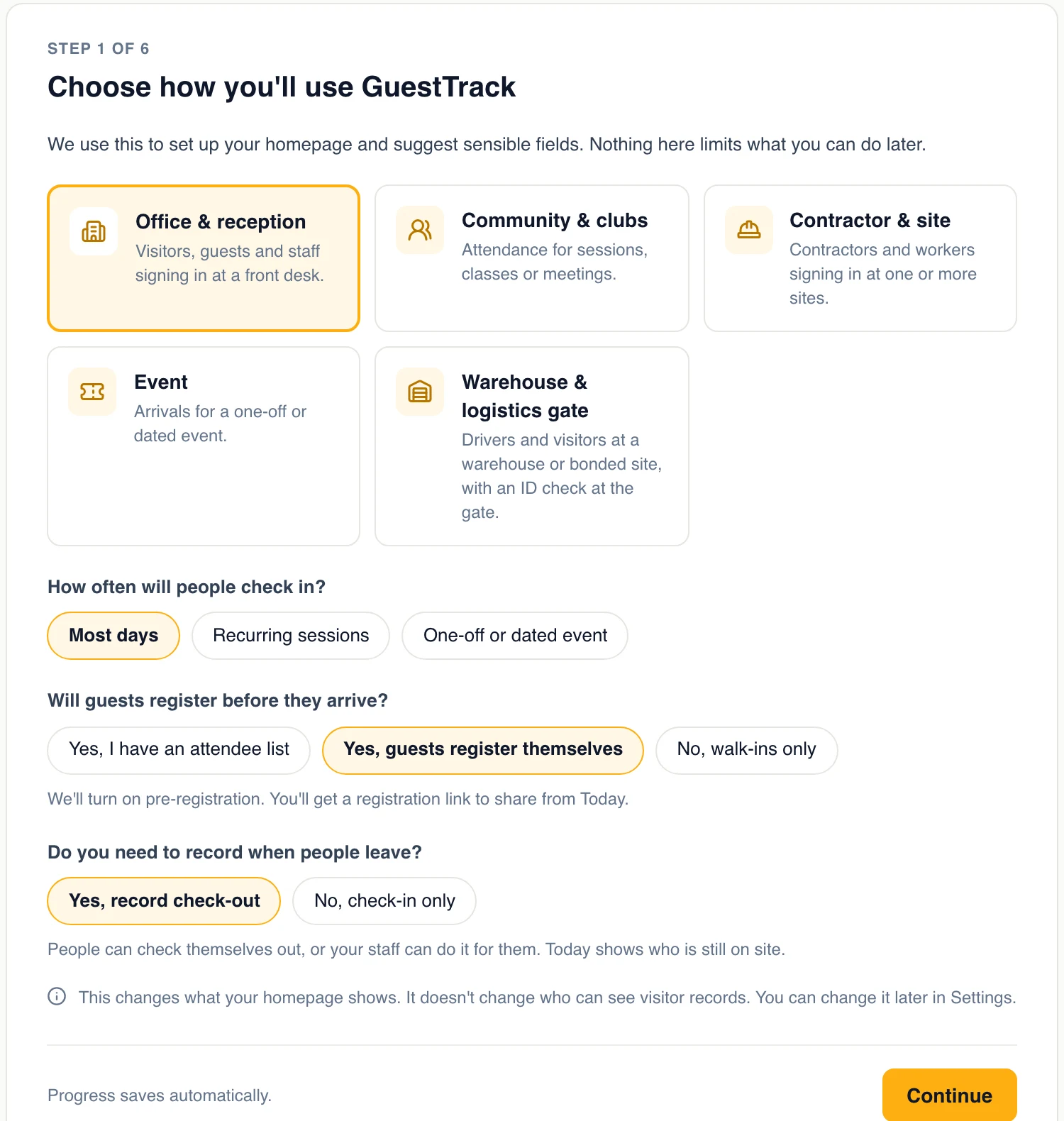
A new project opens on Get started. Pick what check-in is for: an office and reception, a community club, a contractor site, an event, or a warehouse gate. Then say how often people come, whether guests register before they arrive, and whether you need to know when they leave.
- Your homepage and suggested fields follow your choice
- Nothing here limits what you can do later
Confirm the check-in form
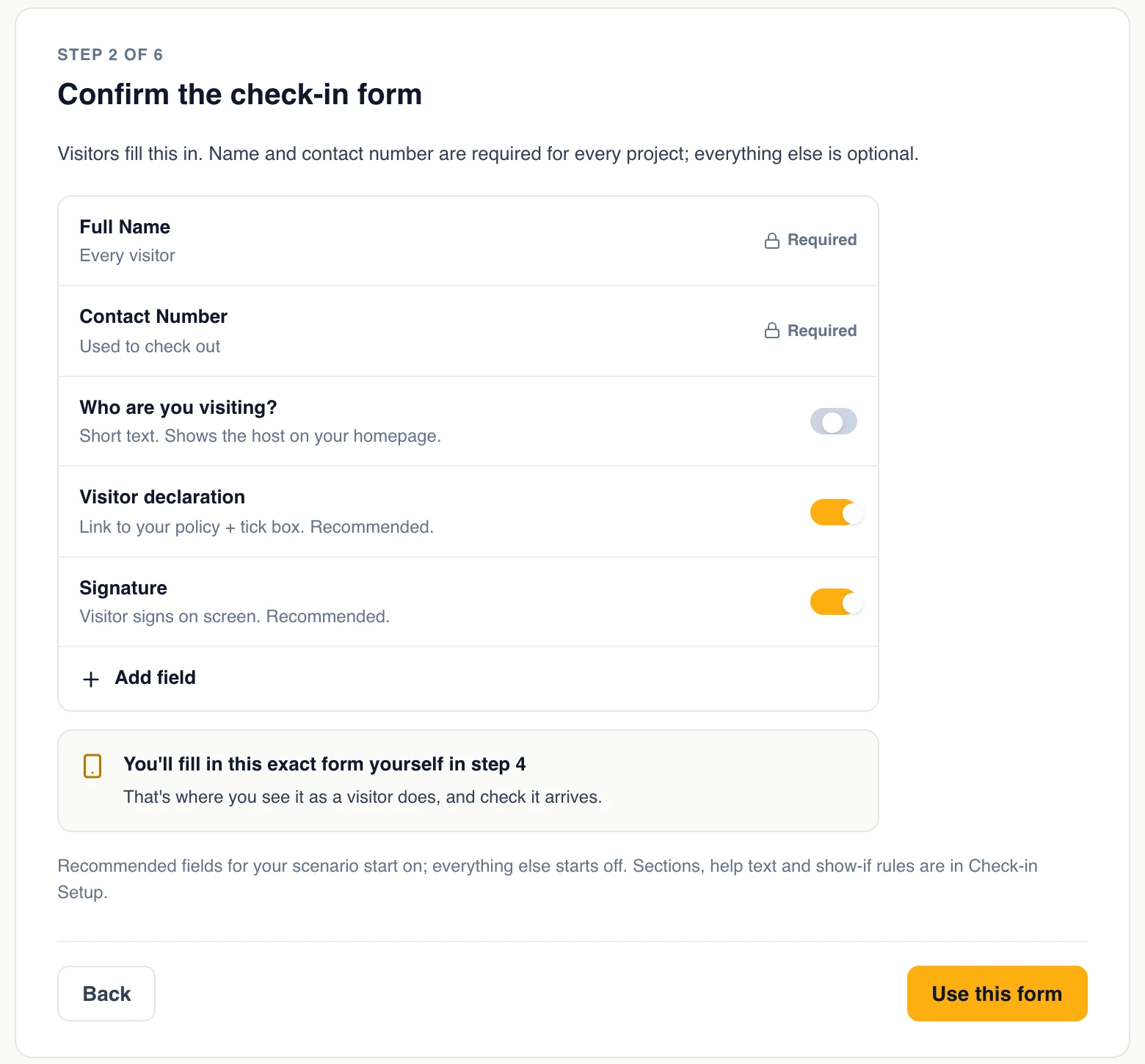
Name and contact number are asked of every visitor. GuestTrack suggests the rest for your kind of site, such as who they are visiting, a declaration and a signature at an office, or a licence and an ID check at a gate. Turn each one on or off, or add your own question.
- 14 kinds of question, from a tick box to a photo upload
- Show-if rules, sections and help text in Check-in Setup
Create a QR code and test it as a visitor
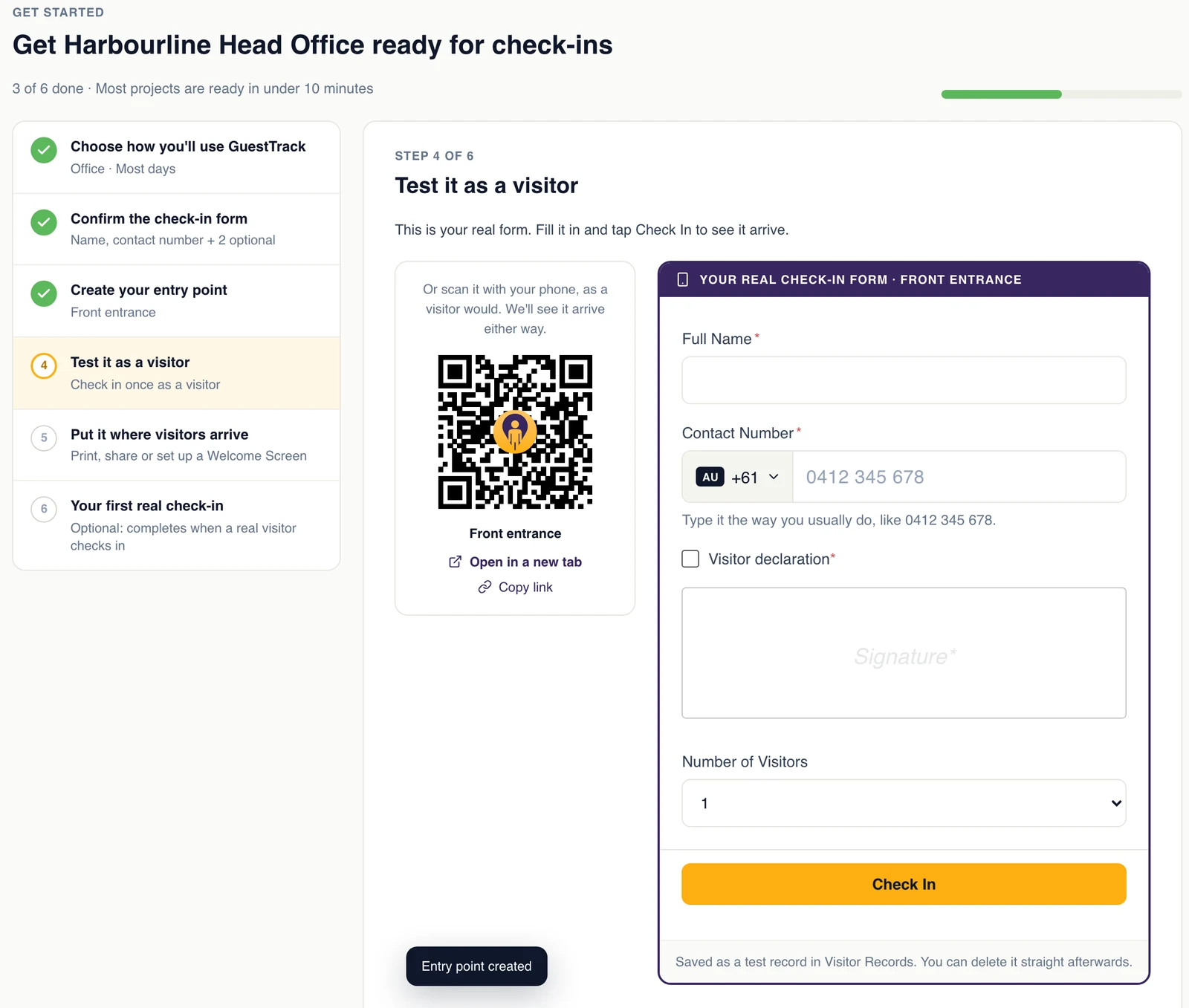
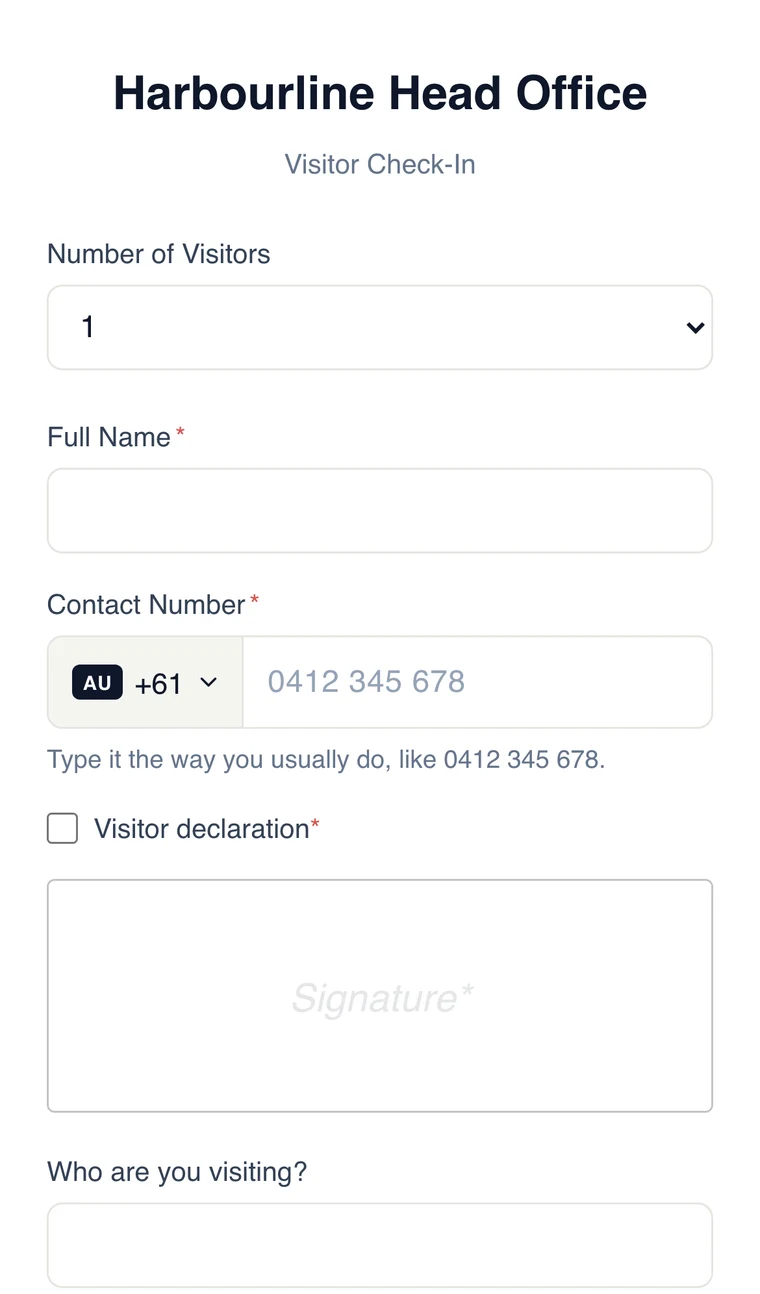
Name your entry point, such as Front entrance, and choose a printed QR code or a Welcome Screen on a tablet. Then fill in your real form, on the page or on your own phone, and watch the check-in arrive. The test is kept apart and you can delete it straight away.
- See exactly what your visitors will see
- No visitor app, no hardware
Put it where visitors arrive
Download an A4 QR poster with your project name, copy the check-in link for emails, calendar invites and your website, or open the Welcome Screen on a tablet at reception. Get started finishes when your first real visitor checks in, and from then on your homepage is Today.
- Pick a plan when you are ready, or stay on the free trial
- Progress saves as you go
Add a check-in point for every door
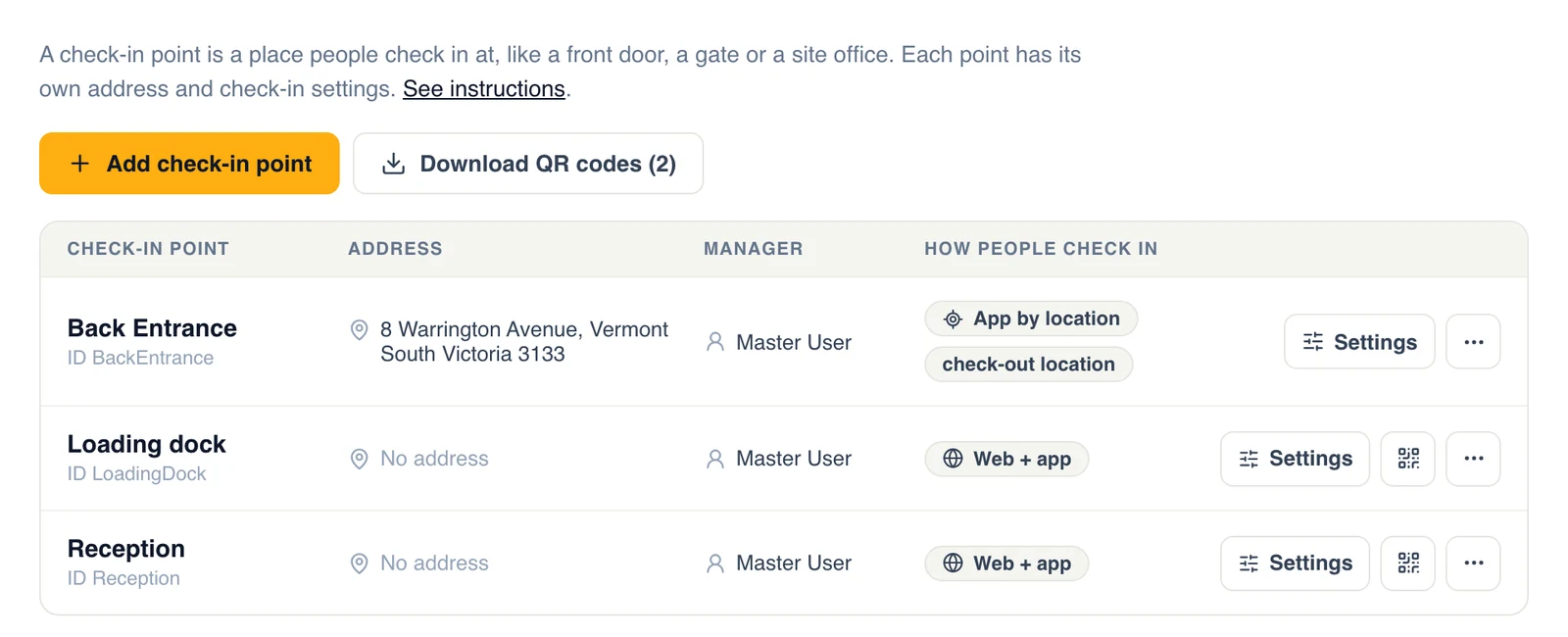
A check-in point is a place people check in at: a front door, a loading dock, a gate or a site office. Each one has its own QR code, address and manager, and decides how people check in there: on the web page, or in the GuestTrack Check In app with a check that they are really on site.
- Unlimited check-in points on every plan
- Download every QR code in one PDF
- Records show which point each visitor used
Then make it yours in Check-in Setup
Check-out, four ways
Visitors tap Check Out on their confirmation or email, on the Welcome Screen, or scan a check-out QR code. Staff can check anyone out from Today or Visitor Records.
Auto check-out
Forgot to check out? Check people out after a set time, at the same time every day, or at a time you choose. On paid plans.
Tell the host
When a visitor answers who they are visiting, that person gets an email as they arrive. Reception or security can get one for every arrival.
Show something after check-in
Open a site induction PDF or a web page as soon as someone has checked in.
Your logo on every page
Your logo shows on the visitor pages and the QR codes, and the QR code takes your colours.
A kiosk from any tablet
The Welcome Screen runs in the browser on an iPad, an Android tablet or a phone, with an admin PIN to leave it.
Set up your first check-in point today
Start a 14-day free trial and Get started opens straight away. Already a customer? Add a project from My Projects.