Badge printing
Every visitor walks in with a badge.
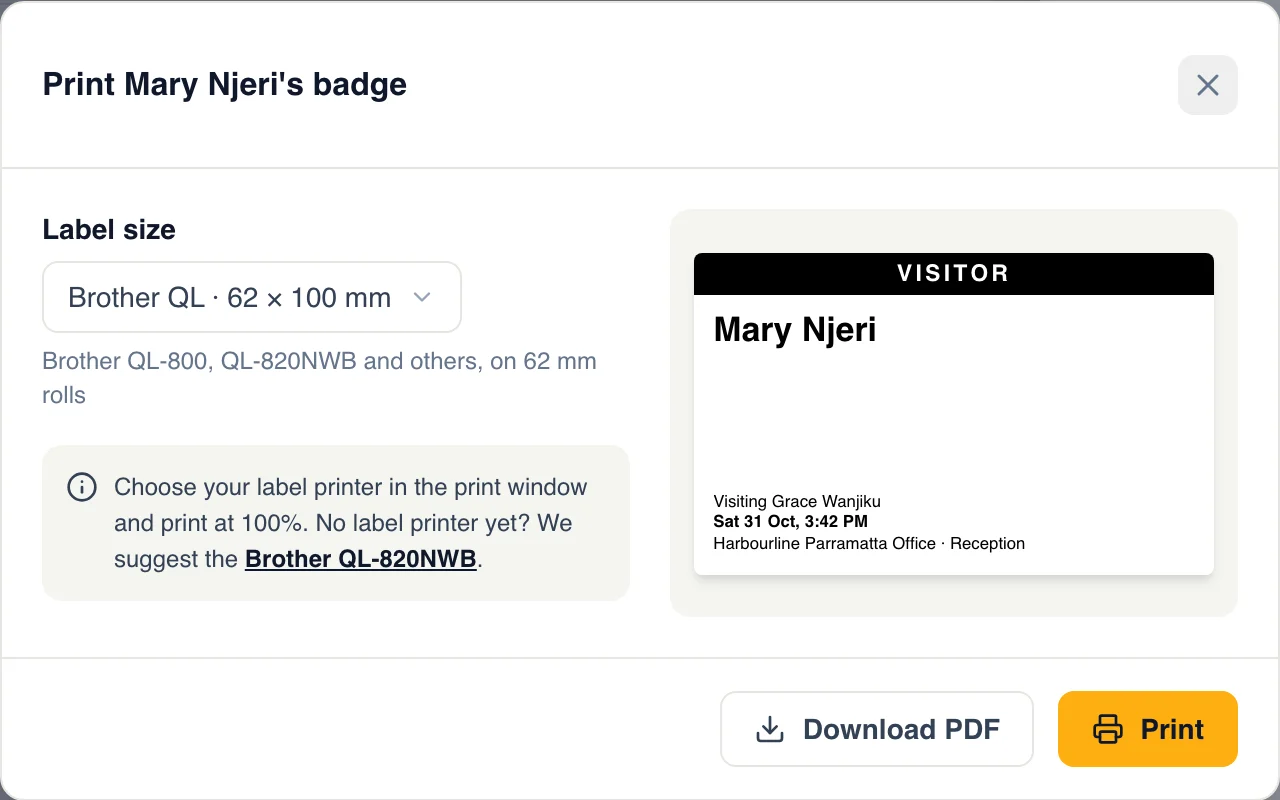
The tablet at your door prints each visitor's badge on a label printer the moment they check in, with nobody at the desk. From your desk, print one visitor's badge, or everyone invited for tomorrow, one badge to a label.
Any AirPrint label printer at the door, any printer from your desk.

Two ways to print
By itself at the door, or when you choose, from your desk.
At the door, by itself
The Welcome Screen
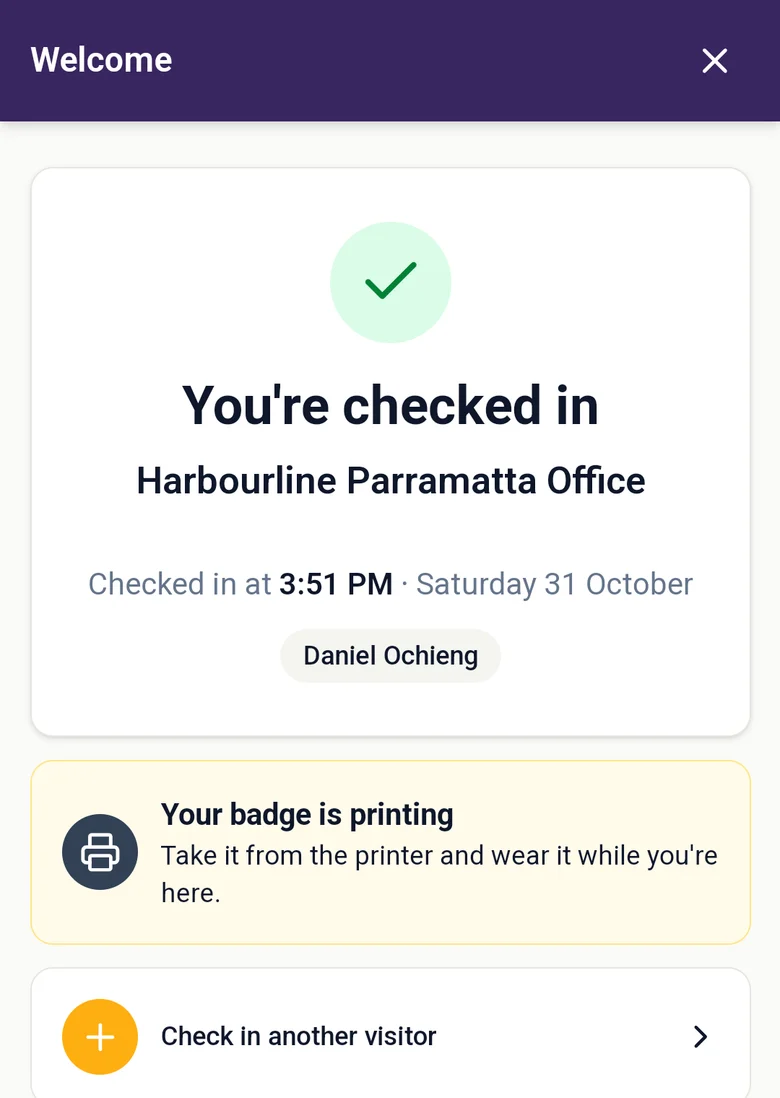
On an iPad, iPhone or Android tablet, in the GuestTrack app. Each visitor who checks in gets their badge straight away: no print window, nobody at the desk.
From your desk
Invites, Today and Visitor Records
Print the badges of everyone invited for tomorrow in one go, or one walk-in’s badge from their visit. Any browser, any printer.
Watch it, start to finish
A new project turns badge printing on, the tablet at reception picks its printer, and Mary checks in. Her badge comes out of the printer. Then a day of invites, printed from the desk. Under three minutes.
The badge
Readable from across the room
A black VISITOR band a guard sees at a glance. The name in large letters, then who they are visiting, the date and time, and where they checked in, so yesterday's badge stands out. An invited visitor's badge also carries their check-in code.
Invites
A day of invites, in one go
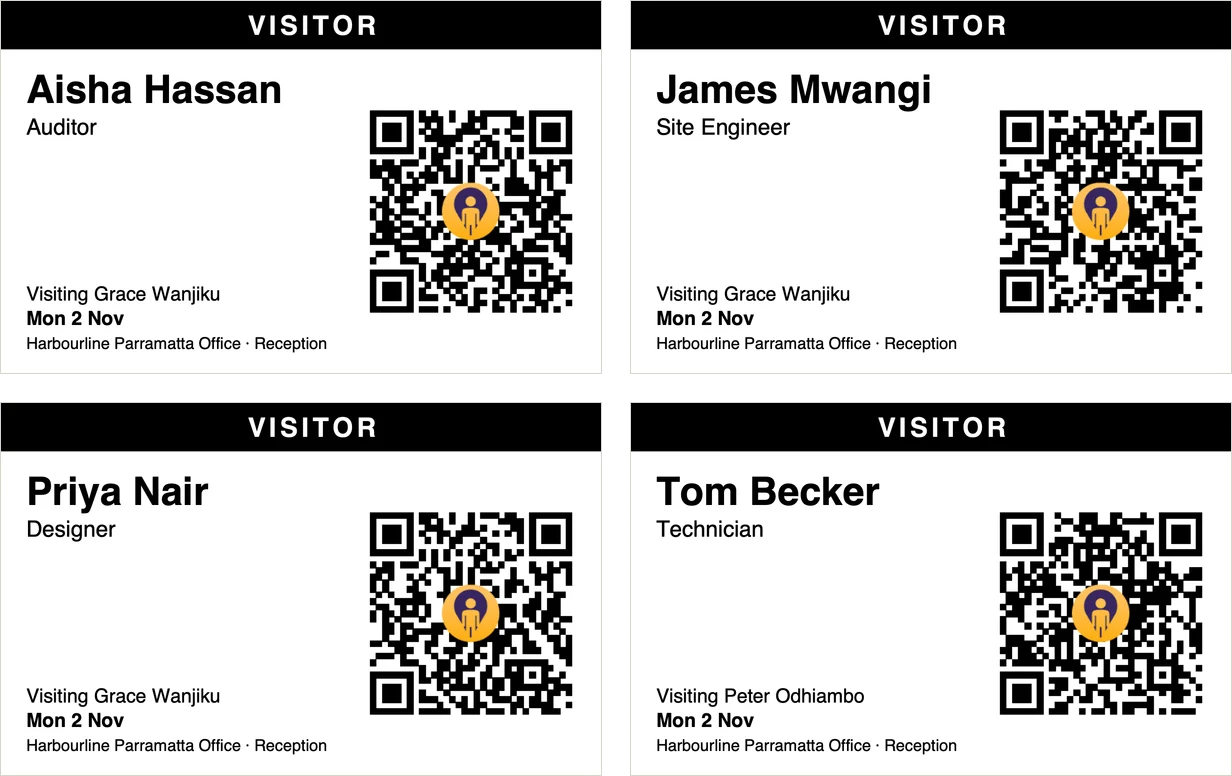
Tick everyone coming on Monday and choose Print badges: one PDF, one badge to a label, ready before they arrive. Each badge carries the visitor's check-in code, so they scan it at the Welcome Screen and they're checked in. Someone left theirs at home? Open their invite and print just that one.
Fits the label in your printer
Pick the size once; GuestTrack draws the badge to fit, one to a label.
| Label | Size |
|---|---|
| Brother QL-800, QL-820NWB and others, 62 mm rolls | 62 × 100 mm |
| DYMO LabelWriter name badge labels (99014) | 54 × 101 mm |
| Zebra and most thermal label printers | 4 × 3 in |
| Any other roll | 40 to 160 mm |
| An office printer with Avery A4 label sheets | 10 to a sheet |

Set up the door in three steps
- In Check-in Setup, open Welcome Screen. Under Badge printing, switch on “Print a badge at each check-in” and choose your label.
- On the tablet, in the GuestTrack app, open More › Badge printer. Pick the printer and print a test badge.
- Start the Welcome Screen. Each visitor sees “Your badge is printing” and takes it on the way in.
Built for a door nobody is watching
A printer problem never becomes a visitor problem.
Check-in never waits for the printer
The visit is saved first, so a jammed printer never stops anyone checking in.
Out of labels? The visitor is told
They are asked to see reception, instead of waiting at a printer that will never print.
Works when the internet drops
The printer is on your Wi-Fi, so badges still print while the check-ins wait to be sent.
No printer app, no driver
The GuestTrack app sends the badge to the printer itself, over your Wi-Fi.
Kiosks
Every tablet and its printer, on one screen
Check-in Setup › Welcome Screen › Kiosks lists each tablet at your doors: whether it is online, its badge printer, and how its last badge went. A printer out of labels shows in red, so someone can refill it before the next visitor.

Who wears them
Anywhere people need to know who is a visitor.
Offices
Reception can see at a glance who is a visitor and who they came to see.
Sites and depots
Every contractor through the gate wears a dated badge, so yesterday’s stands out.
Security
A guard reads the black VISITOR band and the name from across the room.
Events
Print the day’s invited guests before the doors open, and walk-ins as they arrive.
The printer we suggest
The Brother QL-820NWB: Wi-Fi, AirPrint and Bluetooth, on 62 mm rolls sold everywhere. It prints from an iPad, an Android tablet and a computer.
See the Brother QL-820NWBWorks with the Welcome Screen and Invites
The Welcome Screen turns a tablet into your front desk, and Invites prints the day's badges before guests arrive.
See the Welcome Screen · See InvitesQuestions
- Which printers work?
- From your desk, any printer your browser can print to: a Brother, DYMO or Zebra label printer, or an office printer with A4 label sheets. At the door, any AirPrint label printer on the same Wi-Fi as the tablet. We suggest the Brother QL-820NWB.
- Do I need the GuestTrack app?
- Only to print by itself at the door. A browser always shows a print window first, so the Welcome Screen prints from the GuestTrack app on an iPad, iPhone or Android tablet. From your desk, any browser works.
- What if the printer is out of labels or switched off?
- The visitor is still checked in: the check-in is saved before the badge is printed. They are asked to see reception, and the Kiosks list shows which tablet’s printer needs looking at.
- What is on the badge?
- A black VISITOR band, the visitor’s name in large letters, who they are visiting, the date and time, and where they checked in. An invited visitor’s badge also has their check-in code, which they scan at the Welcome Screen to check in.
- Can it print in colour?
- Label printers are thermal, so badges are black and white, and the labels never need ink.
- Is anything stored to print a badge?
- No. The badge is drawn on the tablet from what the visitor has just typed, and sent straight to the printer on your Wi-Fi.
- Which plans include it?
- Growth and Portfolio, and the 14-day free trial.