Slack & Microsoft Teams
Tell the host in Slack or Teams the moment their visitor arrives.
A visitor checks in, and the person they came to see gets a message in the chat app they already have open. One press of “I'm on my way”, and the visitor's own screen shows who is coming. Reception can see every arrival in a Slack channel.
On every plan. Hosts install nothing: they're found by their email address.

How it works, in four steps
Connect once, and every arrival reaches the right person by itself.
You, once
Connect Slack or Teams
Add to Slack in one click. For Teams, your Microsoft 365 admin approves GuestTrack once.
GuestTrack
Finds your hosts
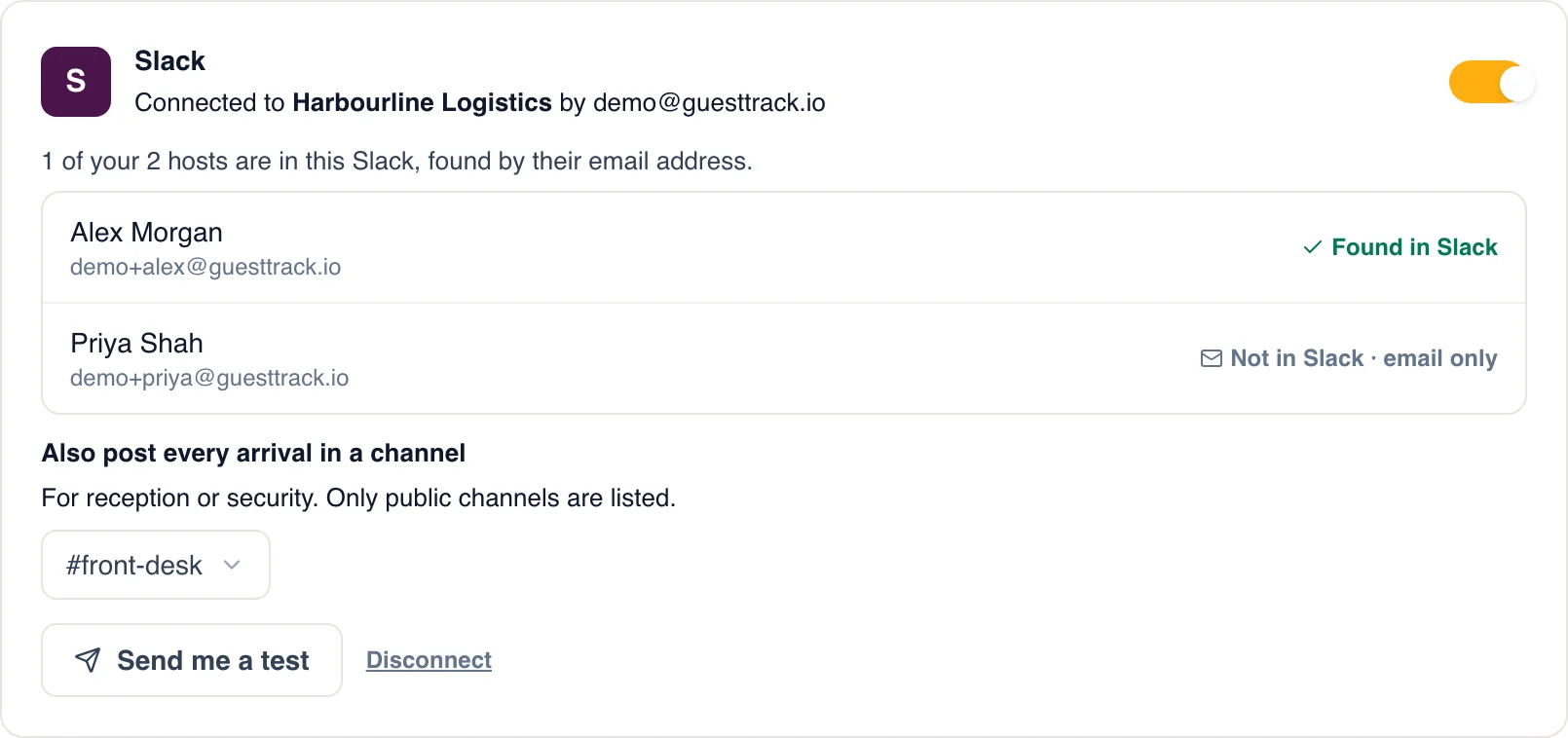
By the email address in your host list. Settings show who is found, and who only gets the email.
The visitor
Checks in
They scan the QR code, fill in your form and pick who they’re here to see.
The host
Gets a message
Who is here, and where, with “I’m on my way”. One press, and the visitor sees it.
Watch it set up, start to finish
Connect Slack, see each host found by email, then a visitor checks in and their host is on the way after one press.
From the front door to “I’m on my way”
Sophie visits an office where everyone works in Slack.
- 1
A message from GuestTrack
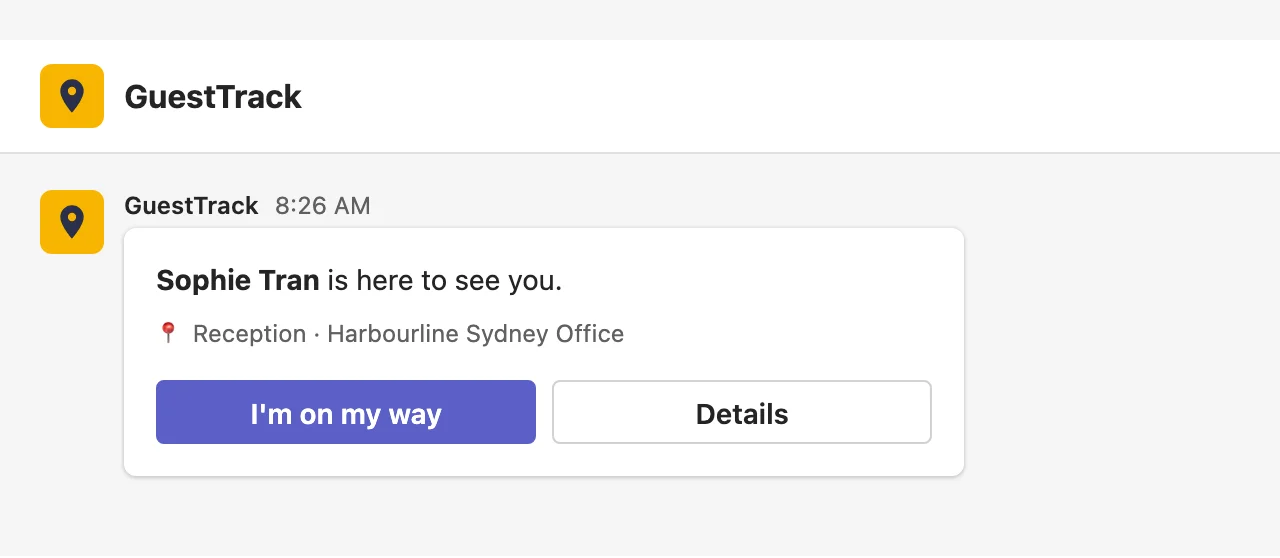
Sophie checks in at reception and picks Alex. Seconds later, Alex gets a direct message in Slack: who is here, and where.
- 2
One press: I’m on my way
No link to open, no sign-in. The buttons give way to what happened, so nobody presses twice. Details opens the arrival in GuestTrack.

- 3
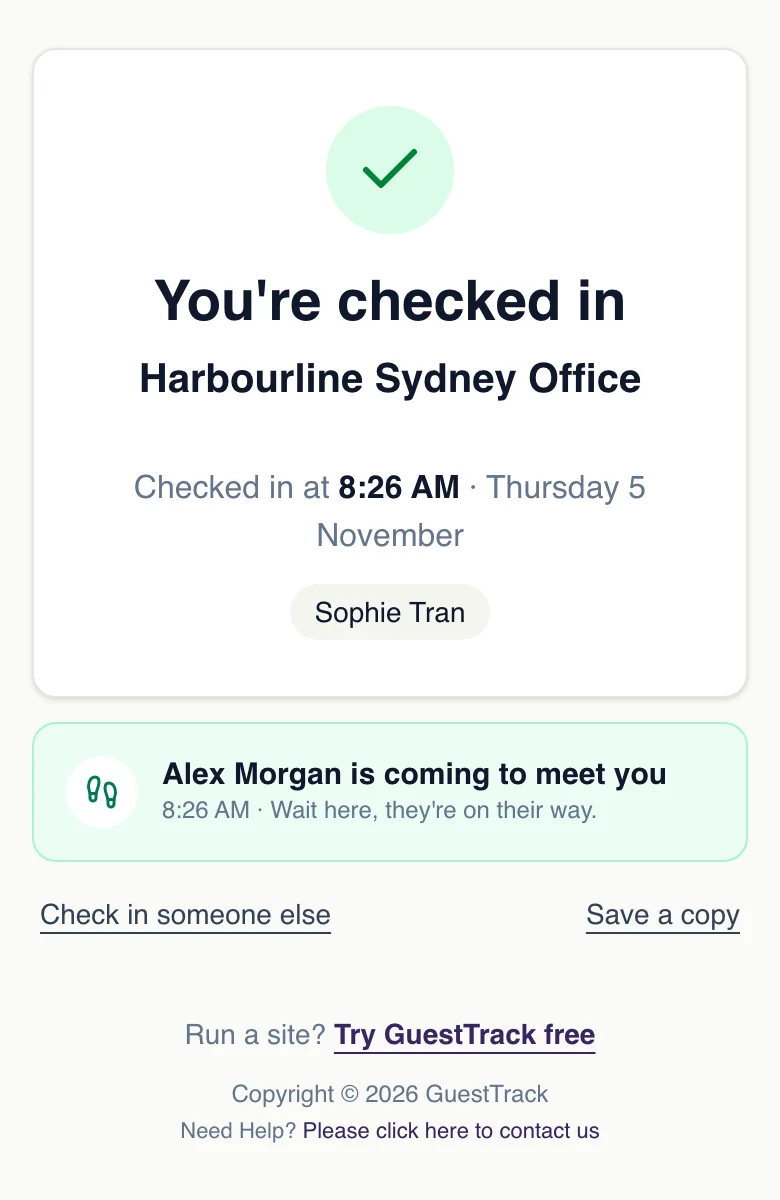
Sophie knows Alex is coming
Her check-in page changes by itself: “Alex Morgan is coming to meet you”. Visitor Records shows who met her, and when.
Slack
Set it up in two minutes
- Add “Who are you visiting?” to your form, with each host (see Hosts), and turn on Email Alerts.
- In Check-in Setup, open Slack & Teams and choose Add to Slack. Pick your workspace and Allow.
- Check which hosts were found, pick a channel if you want one, and send yourself a test.
Every arrival in one channel
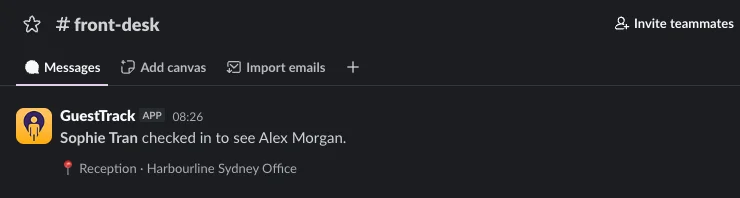
Pick a public channel, such as #reception or #security, and every check-in is posted there, whoever the visitor came to see. Hosts still get their own message.
Microsoft Teams
Your Microsoft 365 admin approves it once
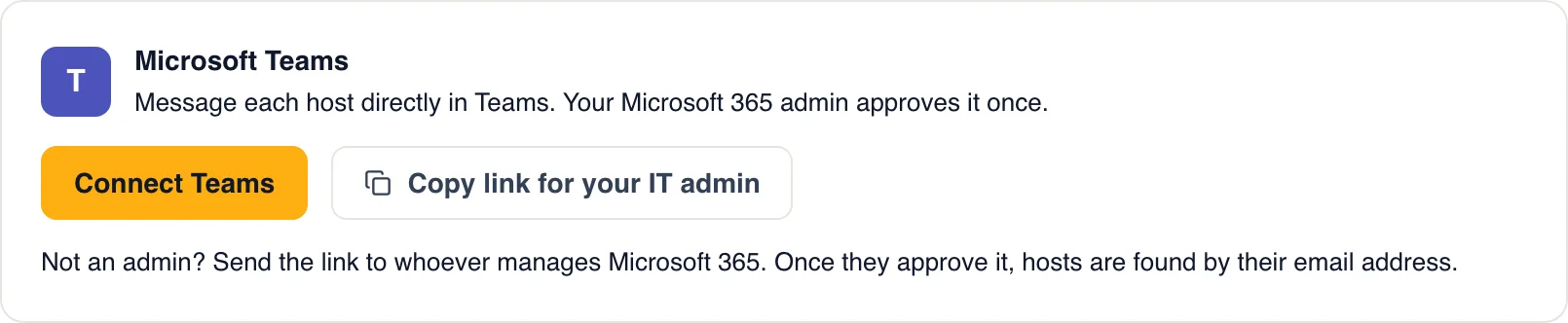
If that's you, choose Connect Teams and accept. If it isn't, copy the link for your IT admin: it works once, for a week. After that, hosts are found by their work email, and the first message adds GuestTrack to their Teams for them.
The same message, in Teams
A card in the host's chat with GuestTrack, with the same “I'm on my way” button.
For teams who live in chat
The message arrives where people already are, on their computer or their phone.
Offices
Hosts live in Slack or Teams all day, not in their inbox. They see the visitor before the visitor finds a seat.
Reception
A #reception channel shows every arrival as it happens, and who is already on their way.
Security
Post every check-in to the security team’s channel, with who the visitor came to see.
Depots and sites
Supervisors with Teams on their phone know a driver is at the gate, wherever they are.
Questions
- Which plans include it?
- Every plan, and the 14-day free trial. There is nothing extra to pay for Slack or Teams messages.
- How does GuestTrack know who someone is in Slack or Teams?
- By email address. A host is messaged when the address in your host list is the one they use in Slack or Microsoft 365. Settings show each host as found, or as email only.
- Do hosts still get the email?
- Yes. Slack and Teams messages go to the same hosts as the arrival email, as well as it. A host who isn’t in your Slack or Teams is still emailed.
- What does the Microsoft 365 admin approve?
- Once, for your organisation: reading your directory to find each host by email address, and adding the GuestTrack app to a host’s Teams so it can message them. If you aren’t the admin, GuestTrack gives you a link to send them. It works once, for a week.
- What does GuestTrack send to Slack or Teams?
- The visitor’s name and company, the check-in point, the project’s name and who they came to see. Nothing else from your check-in form.
- Can I post every arrival in a channel?
- In Slack, yes: pick a public channel such as #reception or #security, and every check-in is posted there, whoever the visitor came to see. The GuestTrack app doesn’t need to be invited to it.
- What if two people press “I’m on my way”?
- The first one counts. The second sees who is already on their way, and a host whose visitor has already left is told so.
- How do I turn it off?
- A switch pauses the messages and keeps the connection; Disconnect removes it. Hosts keep getting the email either way.