Invites
Know who is coming. Check them in with one scan.
Invite a visitor for one visit, or someone who comes every week. Each person gets a check-in code by email. Arriving is showing it.
What your visitor sees
Four screens, on the phone they already have
No app to install. No account to create. No form at the desk.
1. The invitation
An email that says where and when, with their check-in code inside.
2. The code
It opens in the browser, on any phone. Nothing to install.
3. In their wallet
Apple Wallet on an iPhone, Google Wallet on Android: the code is easy to find at the door.
4. Checked in
Staff or the kiosk scan the code. No code to hand? They type their mobile number.


What your team does
From the invitation to the visitor record
People get onto your list in three ways. After that, every invite follows the same path.
Invite someone yourself
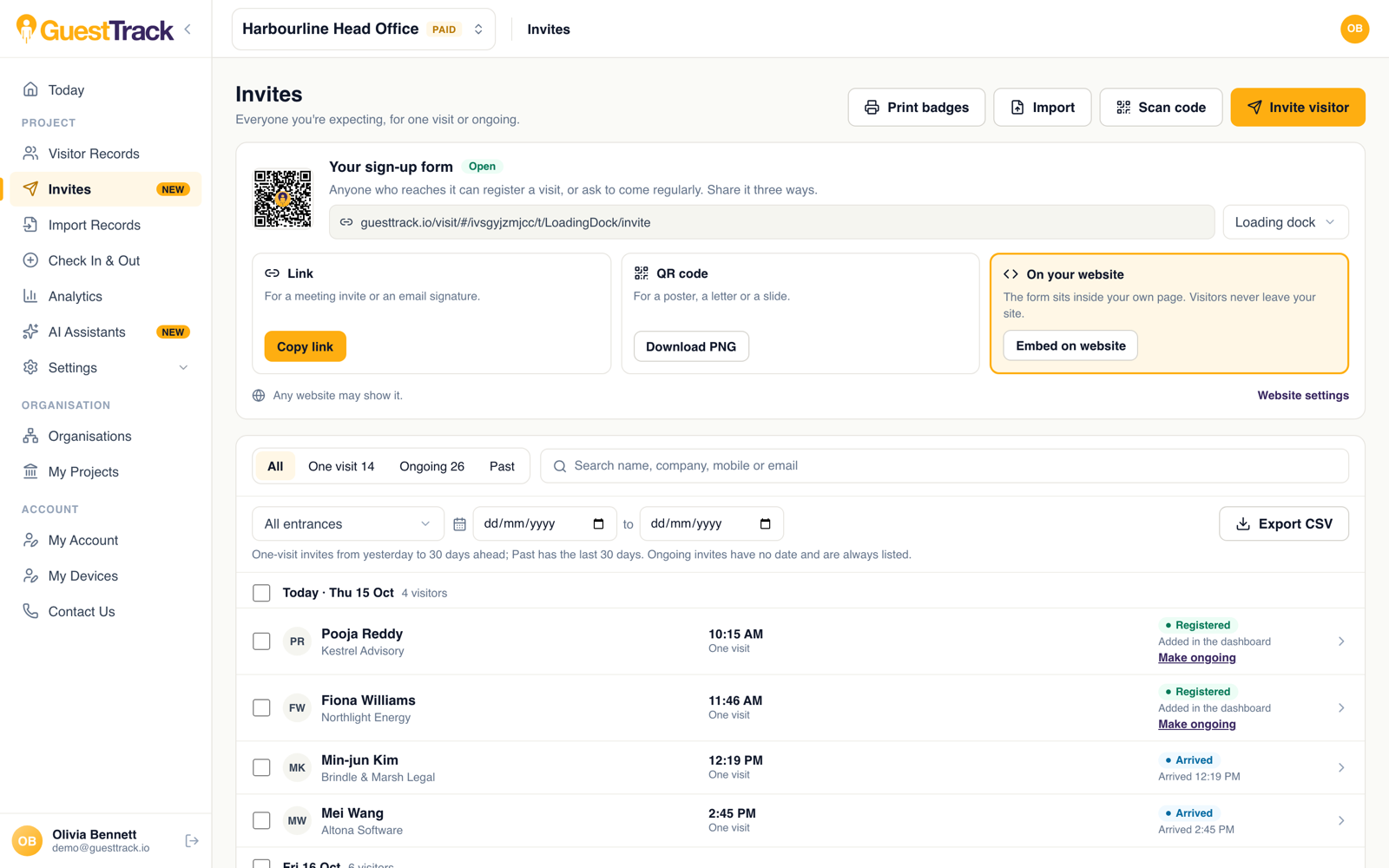
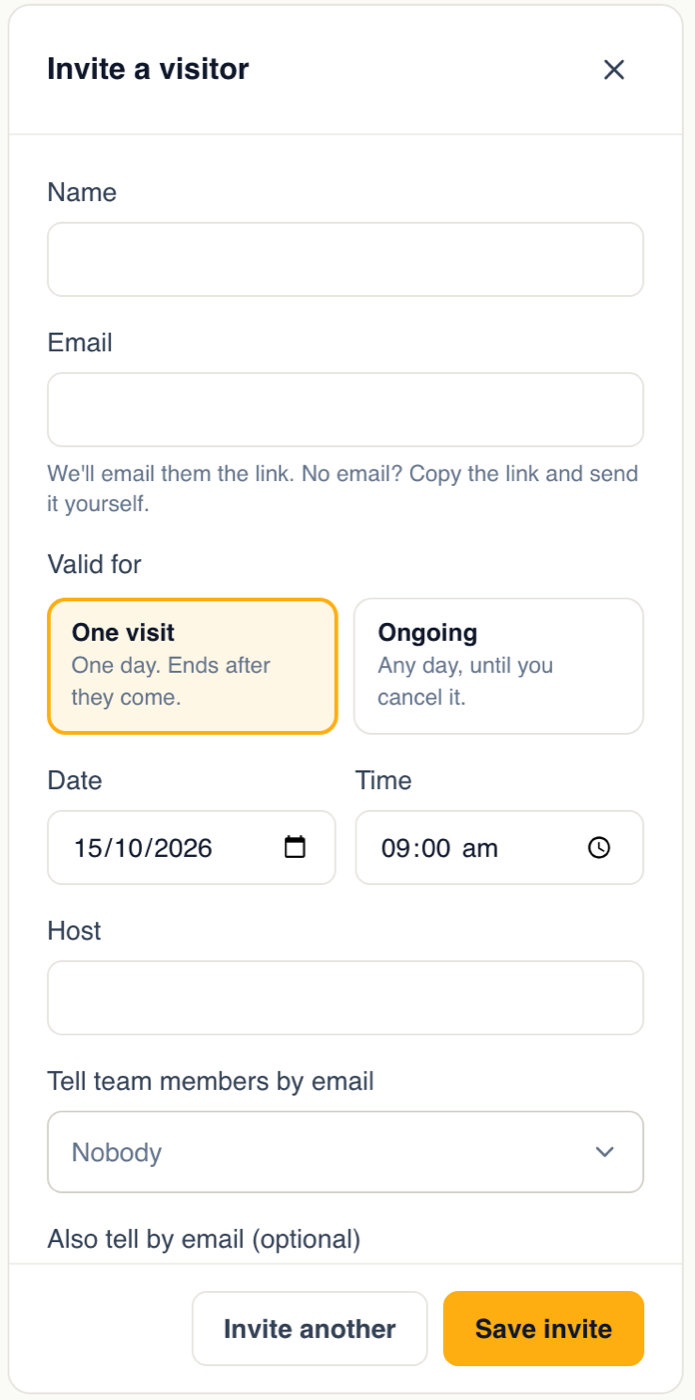
Choose Invite visitor: a name, an email and when they are coming. For one visit, or ongoing.
Share a link or a QR code
Send your sign-up form as a link, or print its QR code. People register themselves.
Put the form on your website
The same sign-up form sits inside a page of your own site. Visitors never leave it.
Coming as a group? Paste the rows from a spreadsheet. Your own system can create invites through the API.
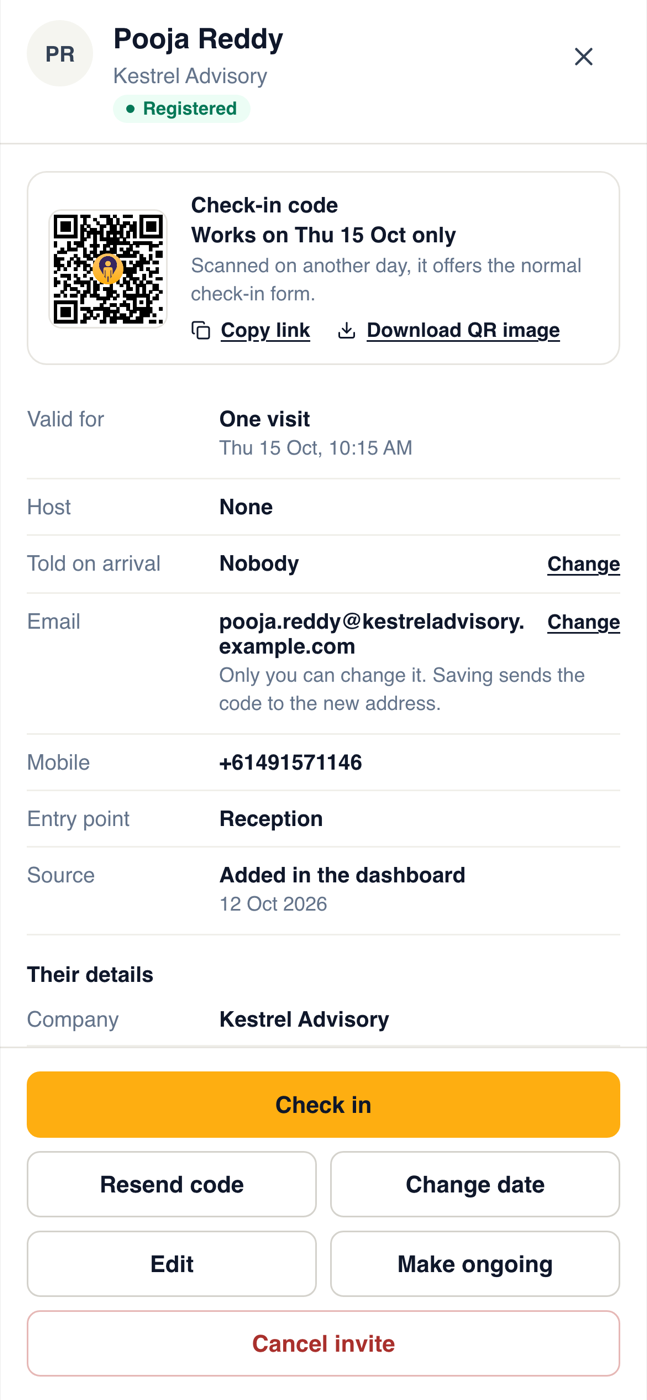
Each person gets a code
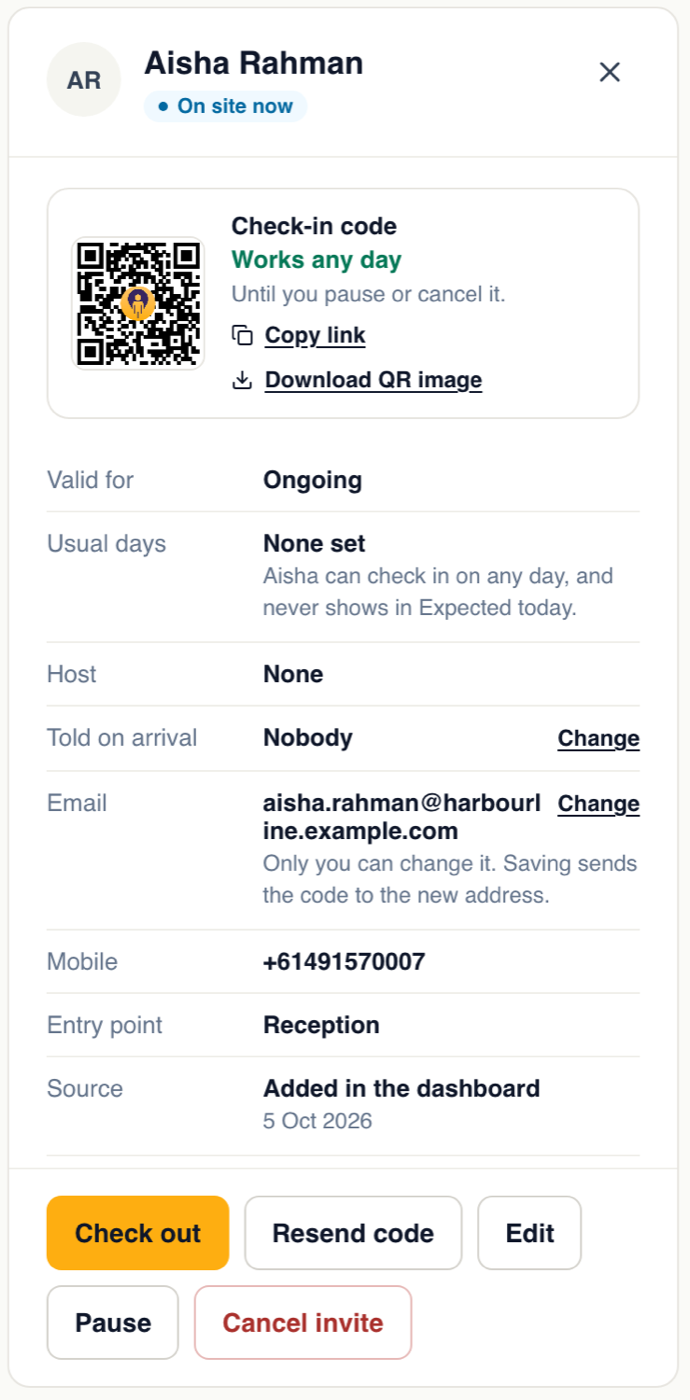
Sent by email. A request to come regularly waits for you: approve it, approve one visit, or decline.
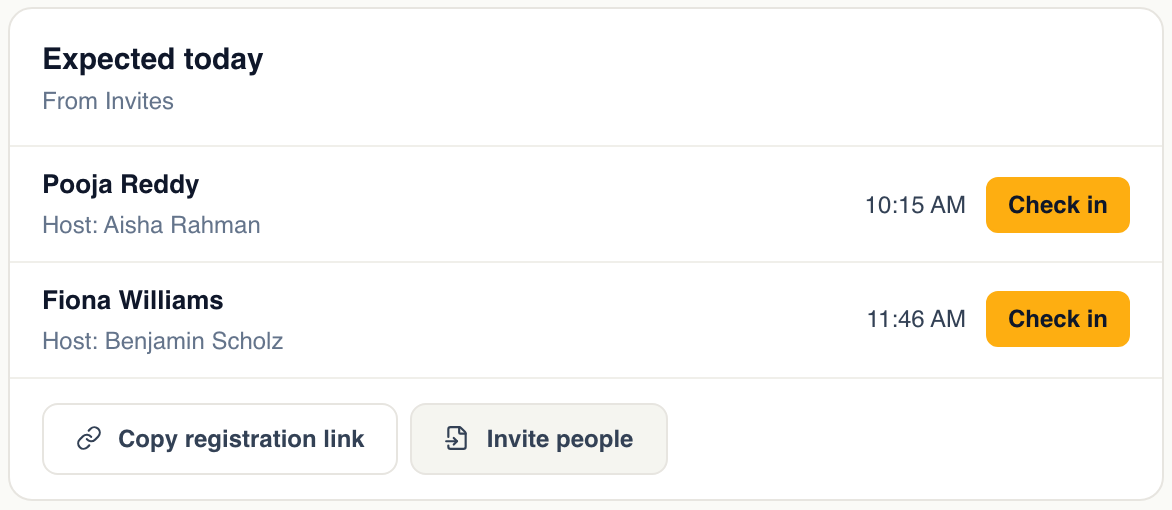
Expected today
Today and the check-in desk list who is still to arrive, so reception knows before the door opens.
Scan, or one tap
Choose Scan code on a phone or tablet, tap the name in the list, or let the kiosk read it.
The right people are told
An email goes to the team members you ticked, and to any other address you add, such as a parent’s.
On the record
The visit is in Visitor Records like any other.
In your dashboard
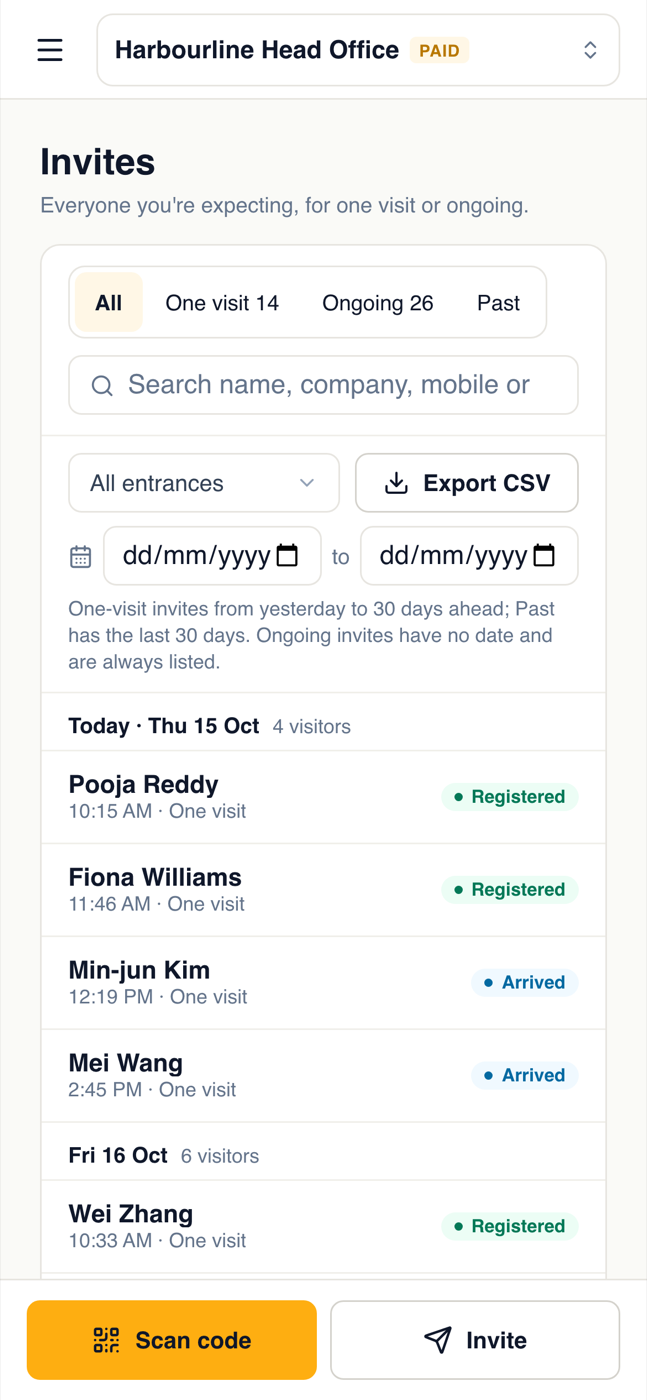
One page for everyone you are expecting
Invites sits in the menu just below Visitor Records. These are the screens your team uses, from a demo project with made-up visitors.
You decide how it runs
- Who fills in the form
- Fill in the visitor’s details yourself, or send them a link and let them add their own before they come.
- Who is told on arrival
- Tick team members, or type any other address. Each gets an email when the visitor arrives.
- Open or invited only
- Let anyone who reaches your sign-up form register, or take only the people you invited.
- Requests to come regularly
- Someone can ask to come regularly from your form. Approve it, approve one visit only, or decline.
- Ask every visit
- Mark the questions a regular answers at each arrival, such as a declaration. Everything else is remembered.
- Pause and cancel
- Pause an ongoing invite while someone is away, or cancel it for good. The code stops working at once.
Invites are included in the Growth and Portfolio plans, and in the free trial. Invites are sent by email.
Built for the front desk
Print badges for a group
Tick the people you want and print their badges in one go: on a label printer, one badge to a label, or on A4 label sheets.
A list of people at once
Paste rows from a spreadsheet to invite everyone coming to an event. Nobody is emailed unless you ask.
Works at a kiosk
A kiosk reads a visitor’s check-in code with the same scanner it uses for your QR code.
Or just a phone number
A visitor who was invited with a mobile number can type it on your check-in page instead of showing a code.
Your existing badges keep working
Pre-registrations and guest badges you already have become invites. Badge cards you have printed still scan.
From your own system
Create invites and check them in through the GuestTrack API with a read and write key.
In every project
Invites replaces pre-registration and guest badges. The ones you already had are there as invites, and printed badges and links you gave out keep working.